

As you work extensively in Worksoft Certify, you will most likely spend many hours working on your Test Suites, organizing folders, optimizing the automated workflow, and cleaning up Duplicate Processes. When you are doing things like that, one of the most common problems to occur is that you accidentally type on your keyboard and, as a result, you delete an important Process.
You select the Process, right-click, select the delete option, confirm the action, then realize you accidentally deleted the wrong one. At that time, it will feel like you have lost hours or even days of automation work.
Accidental deletions occur frequently, especially in a fast-paced QA environment with several testers working in the same database. So, if you have an accidental deletion in Worksoft Certify, you are not alone.
Worksoft Certify was designed with preventive measures to avoid permanently deleting your data. Instead of completely removing the process, the Worksoft Codify program logs the deletion and keeps the Process in the background. This means that the Process has not been permanently removed from the database; it has been removed from your active view. Therefore, restoring a Process that has been deleted from Worksoft Certify is both easy and possible.
In this blog post, we will describe how to recover a deleted Worksoft Certify process using an example of an accidental deletion to illustrate the steps required for recovery and best practices to protect the integrity of your test environment.
An Example of Accidental Deletion
To fully appreciate the process of recovering the erroneously deleted Worksoft Certify process, please read the following scenario.
Let’s say you have an automation process that exists within a folder called Transaction Tests; you want to delete an unneeded process, and you accidentally delete the primary process instead.
Here’s how this situation would happen:
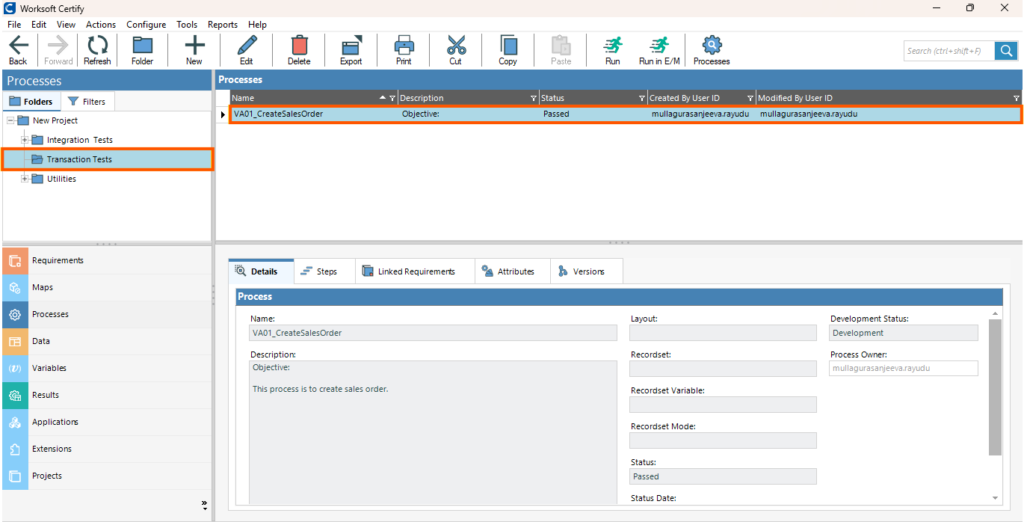
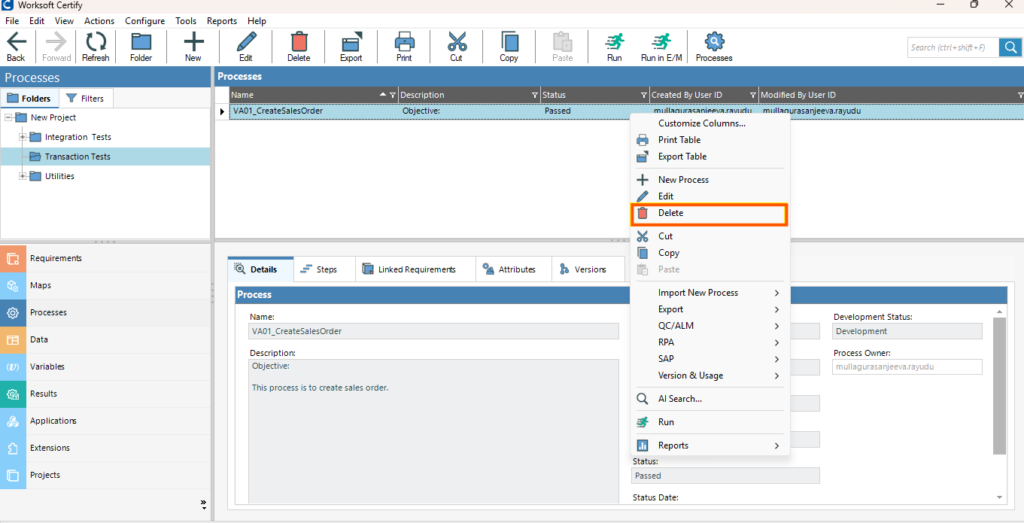
You select the process to delete, right-click on the process, and choose Delete from the menu.
- A confirmation window display. In a hurry to get the job done, you click Yes.
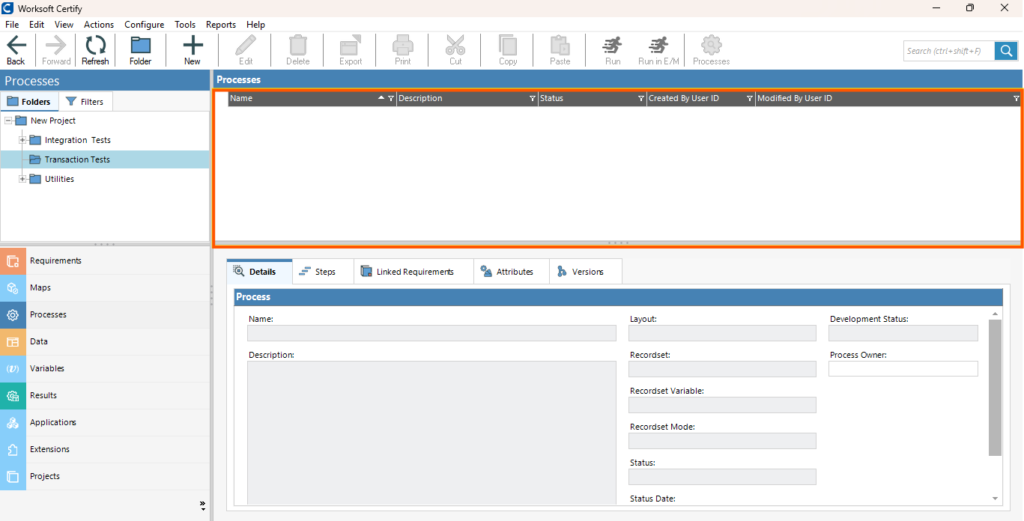
- As soon as you click Yes, the process disappears from the summary pane.
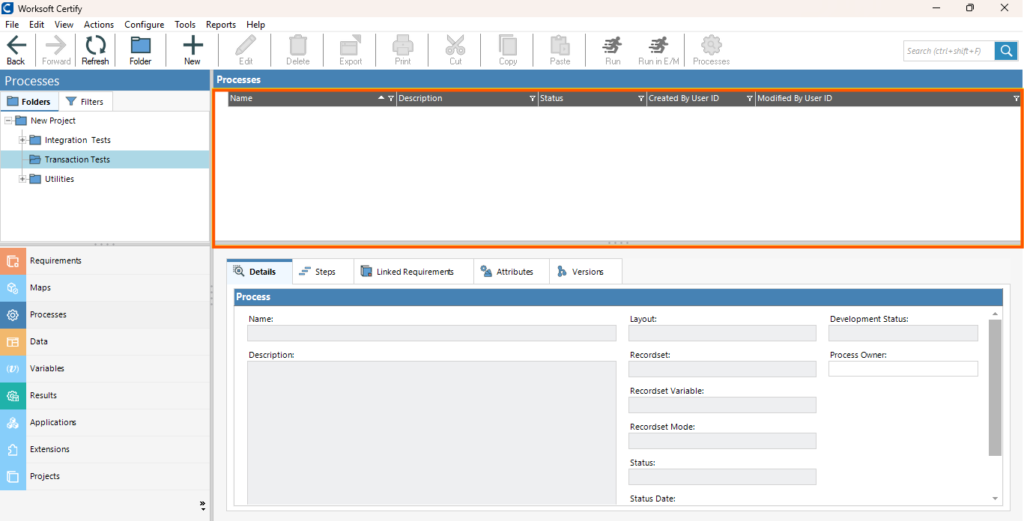
At this point, it may appear as if the process was permanently deleted, however, Worksoft Certify simply marked the process as deleted and removed it from the list of active processes.
How to Retrieve the Deleted Process – Accessing the Recovery Function
The Change History feature in Worksoft Certify can be used to recover any deleted processes using the Tools Menu. The Change History feature is a powerful tool that allows us to track changes made to our project, including the creation, updating, and deleting of processes.
Change History Access Steps
- Login into Worksoft Certify.
- Access the Tools drop-down at the top of the application.
- Select Change History from the Tools drop-down.
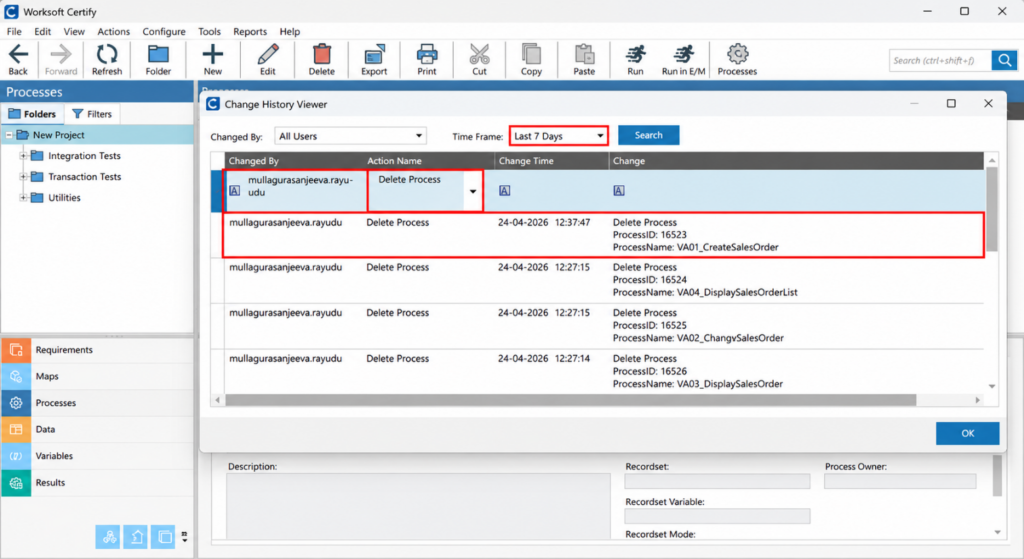
The Change History Viewer will now display a record of every change that has occurred in the system.
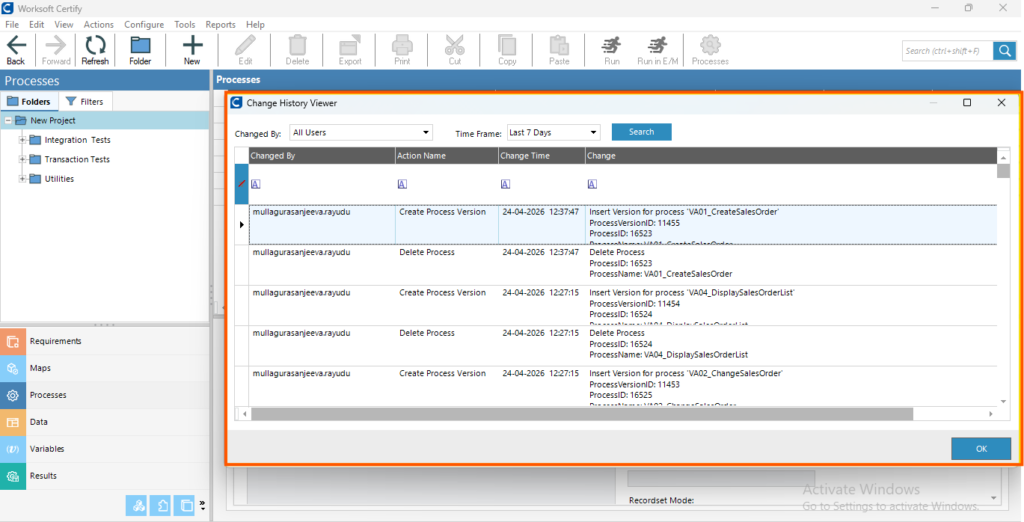
Locating Deleted Processes with Filters
In the larger environments, there may be thousands of entries within the Change History Viewer. When searching for a deleted process, filters should be applied to make the search easier.
Using Key Filters – To effectively locate your deleted process, the following filters should be applied:
- Action Name – Filter by deleting process to return only deleted processes in your results.
- Changed By – If you know which Certify user deleted the process, filter by their user ID (if you deleted it, this will be you) or user ID of the deleting team member.
- Timeframe – Filter to how long ago the deletion likely occurred:
- 1 Day (deleted recently),
- 7 Days (deleted within 1 week), or
- Custom (if delete period is unknown, define a time range).
The application of these filters should greatly reduce the number of entries and assist you in quickly identifying your deleted process.
Bringing Back a Process that Was Deleted
Once the process has been found in the filtered list, it is a straightforward task to restore the process:
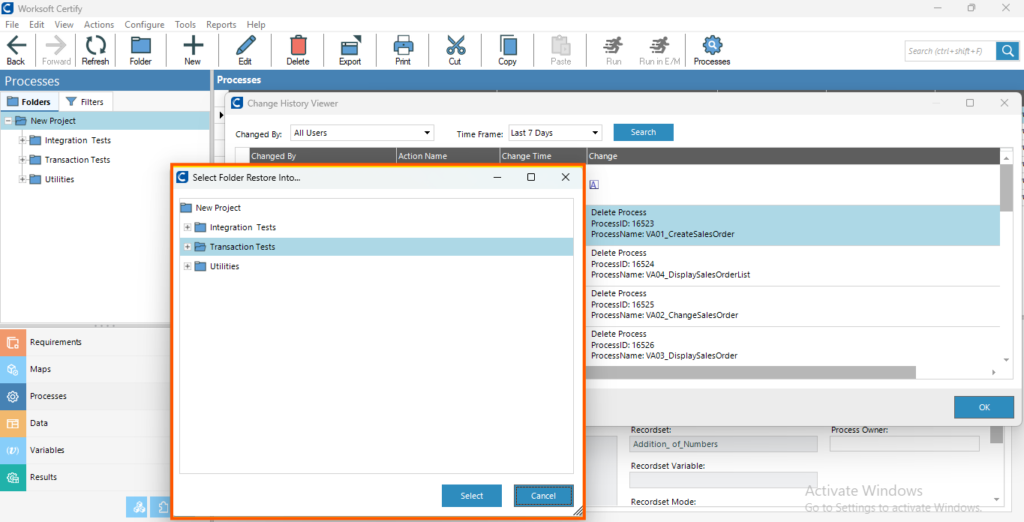
- Right-click on the process you wish to restore.
- Select the Restore Process option from the context menu
- A prompt will appear asking to specify the location where process will be restored to.
- Select the appropriate project or folder to restore the process to (e.g. Transaction Tests).
- Click on Select to finish the restoration process.
The process will then be restored back to the specified location, with all the steps, variables, and configurations preserved, with no loss of data. You will now be able to navigate back to that location and work normally.
Effective Ways to Avoid Losing Data
Even though data can be recovered easily, the best method is to prevent data loss. Here are a few things you can do to prevent data loss:
- Double-check before you delete any process
- Use a clear naming convention, so you don’t get confused about what a name means
- Keep an organized folder structure
- Talk to your team before removing any shared items
- Review your Change History regularly to track changes identically.
Conclusion
The inevitability of errors is something that occurs when testing and automating software. To mitigate the impact of accidental actions performed while creating tests (or missing test actions), Worksoft Certify provides multiple recovery capabilities. One of these capabilities is called Change History. The Change History feature allows you to quickly and easily recover a previously defined key process that was accidentally deleted. By understanding how to utilize this feature effectively, you can increase your efficiency and productivity within the testing workflow, save valuable time, and reduce some of the stress typically associated with mistakes made during test creation.
Knowing how to recover from an accidentally deleted process will allow you to respond quickly and confidently the next time it occurs.