

Overview
AI Agent Studio is a unique environment that empowers us to create, configure, validate, and deploy AI agents to meet your organization’s needs.
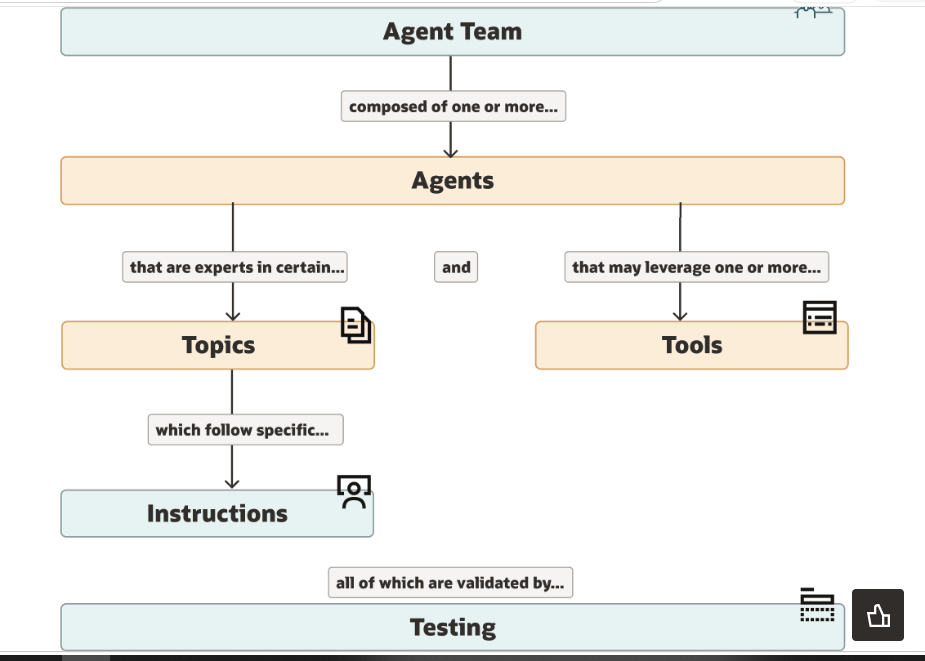
With AI Agent Studio, you can easily extend preconfigured agent templates and even build new agents and multiagent flows. AI Agent Studio is fully integrated into Oracle Fusion Cloud Applications, providing secure and seamless access to the knowledge stores, tools, and APIs of Fusion Applications. This integration enables agents to be deployed directly into the flow, ensuring an efficient process.
Access Requirements for AI Agent Studio
Give access to AI Agent Studio by assigning predefined duty roles to job roles. Also, make sure to complete these prerequisites:
- Enable security console to work with permission groups
- Run scheduled processes to import security data
- Run scheduled processes to get help from the integrated AI agent
- (Optional) Assign privilege to use external REST API tools
- (Optional) Assign permission groups for channels
- (Optional) Assign role to schedule workflow agent teams
- Give users access to AI agent
Enable Security Console to Work with Permission Groups
For the Security Console to work with permission groups and related objects, set the Enable Security Console External Application Integration (ORA_ASE_SAS_INTEGRATION_ENABLED) profile option at the site level.
- In the Setup and Maintenance work area, search for the Manage Administrator Profile Values task using the search link in the panel.
- Search for the profile option and set the value for the Site profile level to Yes.
Run Scheduled Processes to Import Security Data
To import resources from LDAP and transfer the necessary information into the security tables of Fusion Applications, run these two scheduled processes sequentially.
- Import Resource Application Security Data
- Import User and Role Application Security Data
You must run the processes one after the other.
- Go to Navigator > Tools > Scheduled Processes.
- Click Schedule New Process.
- Leave the type as Job.
- Search for and select the process.
- Submit the process.
Run Scheduled Processes to Get Help from the Integrated AI Agent
To use the integrated AI help agent, run these two scheduled processes daily.
- Index AI Agent Studio Assistant Documents
- Index AI Agent Studio Assistant Objects and Attributes
Run each process using these steps:
- Go to Scheduled Processes, and click Schedule New Process.
- Leave the type as Job.
- Search for and select the process.
- Submit the process.
Assign Privilege to Use External REST API Tools
To create External REST API tools in AI Agent Studio, the Create and Edit Backends for Visual Builder Studio (ORA_FND_TRAP_PRIV) privilege must be added to the custom role assigned to the user. You can add this privilege while creating or editing a custom role.
- Go to the Security Console.
- To use a new custom role, create it. To use an existing custom role, search for the custom role and edit it.
- Go to the Function Security Policies page and select Add Function Security Policy.
- Add the Create and Edit Backends for Visual Builder Studio (ORA_FND_TRAP_PRIV) privilege to the role and save it.
- Save the custom role and assign to the user.
Assign Permission Groups for Channels
To create channels from Credentials tab in AI Agent Studio, additional permission groups must be added to the custom role assigned to the user. You can add these permission groups to a duty role and assign the duty role while creating or editing a custom role.
- Go to the Security Console and create a new duty role for permission groups.
- Open the Permission Groups page and select Add Permission Groups.
- Search for and add these permission groups:
- create:ChannelManifest
- create:ExternalChatCorrelation
- delete:ChannelManifest
- delete:ExternalChatCorrelation
- read:ChannelManifest
- read:ExternalChatCorrelation
- update:ChannelManifest
- update:ExternalChatCorrelation
- Add security view for each permission group.
- Select the permission group added.
- In Details section, open Security Views tab.
- Select Add Security Views and add the AllRowsAllFields security view.
- Add the security view for all the permission groups.
- Save the duty role and assign this duty role to the custom job role.
- To use a new custom job role, create it. To use an existing custom job role, search for the custom job role and edit it.
- Go to the Role Hierarchy page. From the Roles and Permission Groups tab select Add Role.
- Search for and add the duty role you’ve created.
- Save the custom role and assign to the user.
Assign Role to Schedule Workflow Agent Teams
Create Customer in Oracle AI Agent Studio
To create a customer in Oracle AI Agent Studio, you’ll need to configure an AI agent that can interact with Oracle Fusion Cloud Applications’ Business Object for customers. This involves defining the right tools, topics, and instructions so the agent can securely create customer records.
Step 1: Create a New Agent
- In AI Agent Studio, click Create Agent.
- Provide an Agent Name (e.g., Customer Creation Agent).
- Specify the product area (e.g., CX or ERP, depending on where customer data resides).
- Add natural language instructions describing the agent’s purpose, such as: “Create a new customer record in Fusion Applications when provided with customer details.”.
Step 2: Add the Business Object Tool
- Go to the Tools tab and select Business Object.
- Choose the relevant business object, e.g., Customer or Account.
- Configure the tool to allow create operations.
- Select only the necessary fields (e.g., Name, Address, Contact Info) to ensure security and compliance.
Step 3: Define Topics
- Create a topic like Customer Onboarding.
- Add natural language prompts such as: “When a user provides customer details, use the Customer business object to create a new record.”
- Link this topic to your agent so it knows when to trigger the creation process.
Step 4: Add Credentials
- If required, add credentials for accessing Fusion Applications securely.
- Ensure role-based access control is applied so only authorized users can create customers.
Step 5: Test and Deploy
- Use test queries
- Verify that the agent correctly calls the business object API and creates the record.
- Once validated, deploy the agent and embed it into your application .